Add FilipinaMeet to Your Home Screen
Your conversations, one tap away. Add FilipinaMeet to your Home Screen or desktop and open it from an app icon whenever you want to chat. Turn on message notifications so you can catch new replies without repeatedly checking the website.
This is the FilipinaMeet web app, also called a progressive web app (PWA). It opens in its own app window and uses your existing account. You still need an internet connection to browse and chat.
Start at app.filipinameet.com. Install the app from that address, rather than saving this help page. Adding an icon and allowing notifications are two separate steps.
iPhone or iPad: add to Home Screen
Use Safari for these steps. Message notifications require iOS or iPadOS 16.4 or later and the app must be opened from its Home Screen icon.
- Open app.filipinameet.com in Safari and sign in. If you opened this link inside another app, copy the address and open it in Safari first.
- Tap Share, the square with an upward arrow. Depending on your Safari layout, you may need to open the More menu first.
- Scroll through the actions and tap Add to Home Screen. If it is missing, tap Edit Actions to add it.
- Keep Open as Web App turned on if that option appears, then tap Add.
- Return to your Home Screen and tap the new FilipinaMeet icon. Sign in again if asked, then follow the notification steps below inside the installed app.
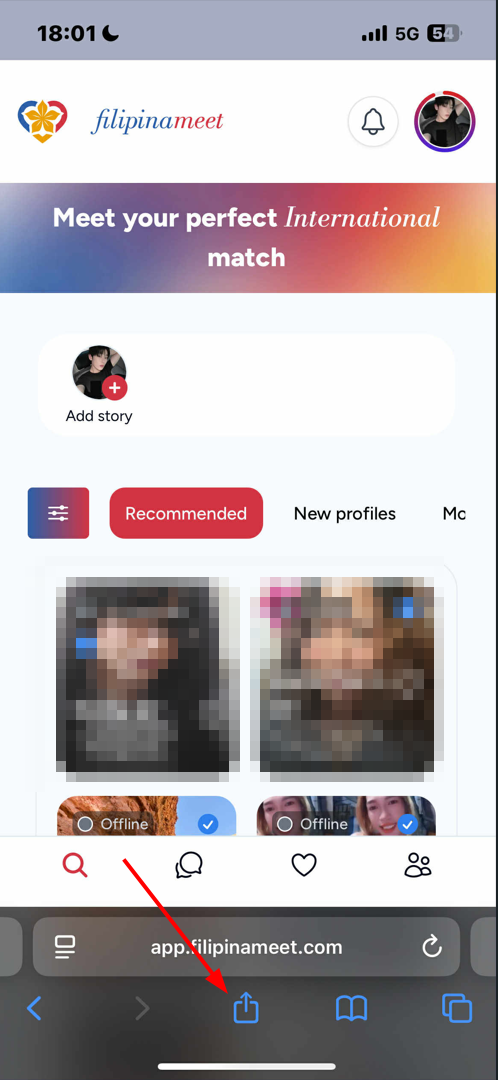
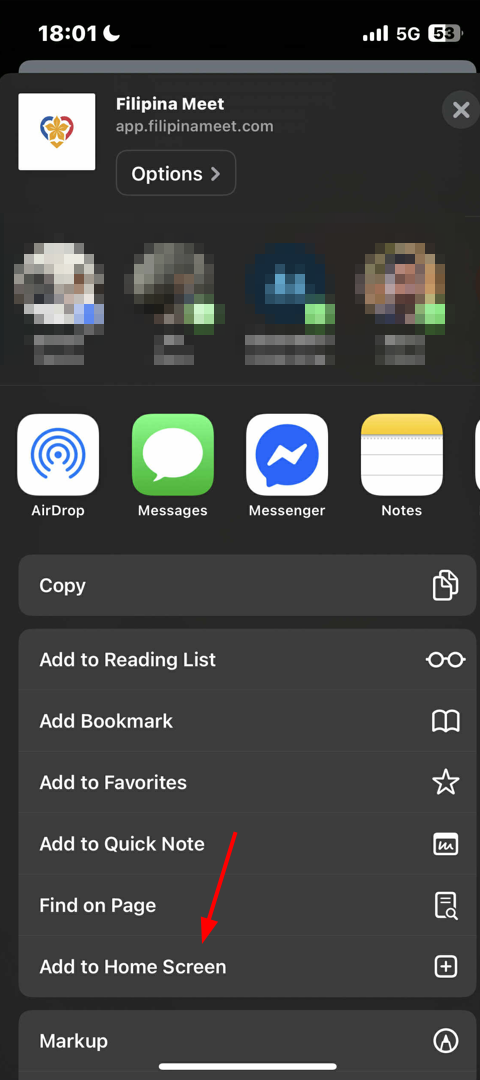
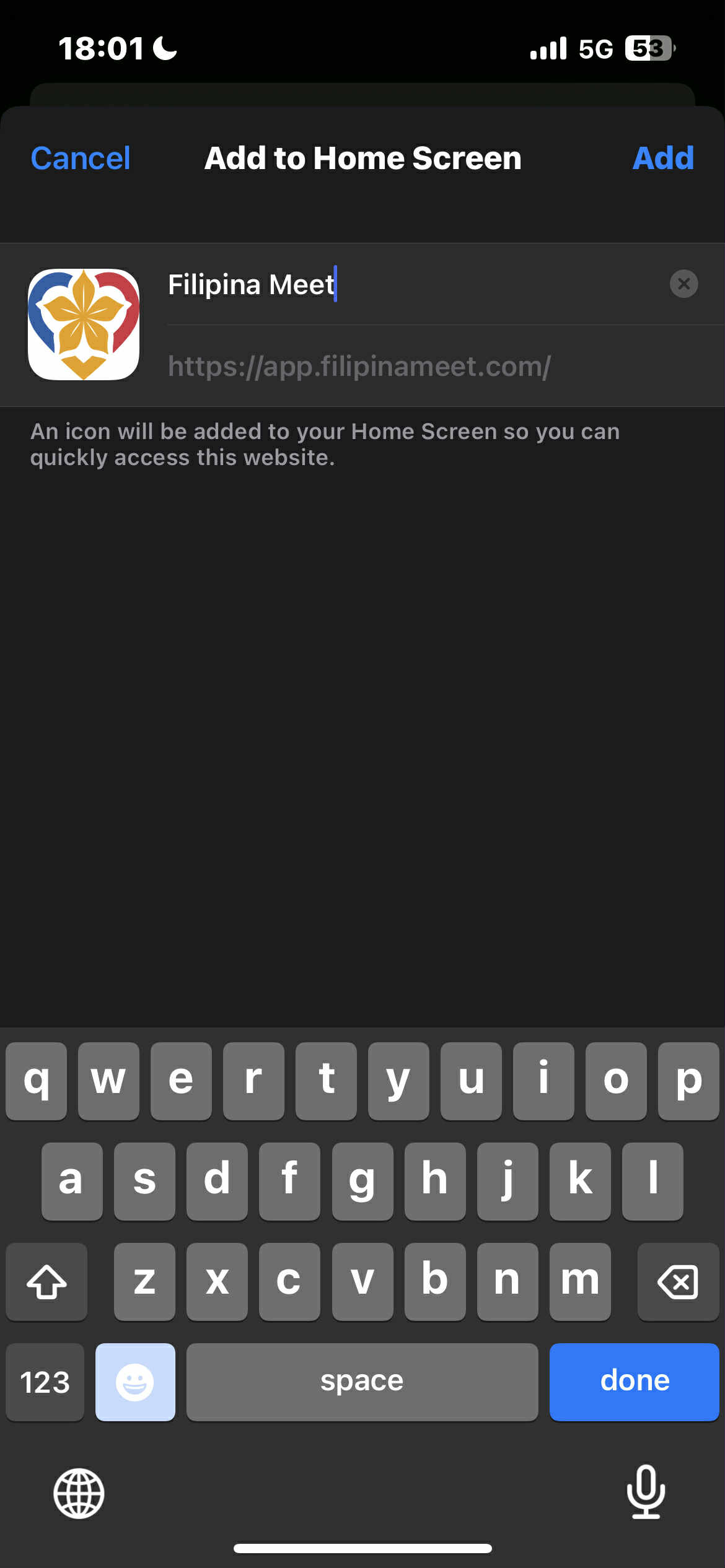
These screenshots show an earlier Safari layout. The Share menu may look different on your device. Tap a screenshot to enlarge it. See Apple's Home Screen guide for the current iPhone steps.
Android: install with Chrome
- Open app.filipinameet.com in Chrome and sign in.
- Tap Chrome's three-dot menu beside the address bar, then Install and create shortcut and Install. Some versions call this Add to home screen or Install app.
- Confirm the installation, then open FilipinaMeet from its new icon.
- Follow the notification steps below to allow message alerts.
Prefer the Android app from the store? You can also use the official FilipinaMeet Google Play listing. The instructions on this page are for installing the web app through your browser. Google's Android web app guide covers Chrome's installation options.
Desktop or laptop: install with Chrome or Edge
Use Chrome or Microsoft Edge on your computer, then follow the matching steps.
Google Chrome
- Open app.filipinameet.com in Chrome and sign in.
- Click the Install icon near the address bar. Or open the three-dot menu and choose Cast, save, and share, then Install page as app.
- Click Install, then open FilipinaMeet from its app icon.
Microsoft Edge
- Open app.filipinameet.com in Edge and sign in.
- Click the App available icon in the address bar. Or open Settings and more (…), then More tools, Apps, and Install this site as an app. In some versions, Apps appears directly in the menu.
- Click Install. Pin the app to your taskbar or Dock if offered.
Once installed, FilipinaMeet opens in its own window. Next, turn on message notifications. For browser-specific help, see the Chrome installation guide or Edge installation guide.
Turn on message notifications
Set this up on each device where you want alerts. On iPhone or iPad, start by opening FilipinaMeet from the Home Screen icon, not a Safari tab. Apple requires the Home Screen web app for these notifications.
- In FilipinaMeet, open Settings → Account settings → Notifications. You can also open Notification settings. On iPhone, use the settings menu inside the installed app so you stay in that app.
- Scroll to Web Push Notifications and tap or click Turn on notifications.
- Choose Allow when your browser or device asks for permission.
- Under Push notifications, select Every message received for ongoing conversation alerts, or Only on new conversations for fewer alerts. Never turns off message alerts. Tap or click outside the choices to save the preference.
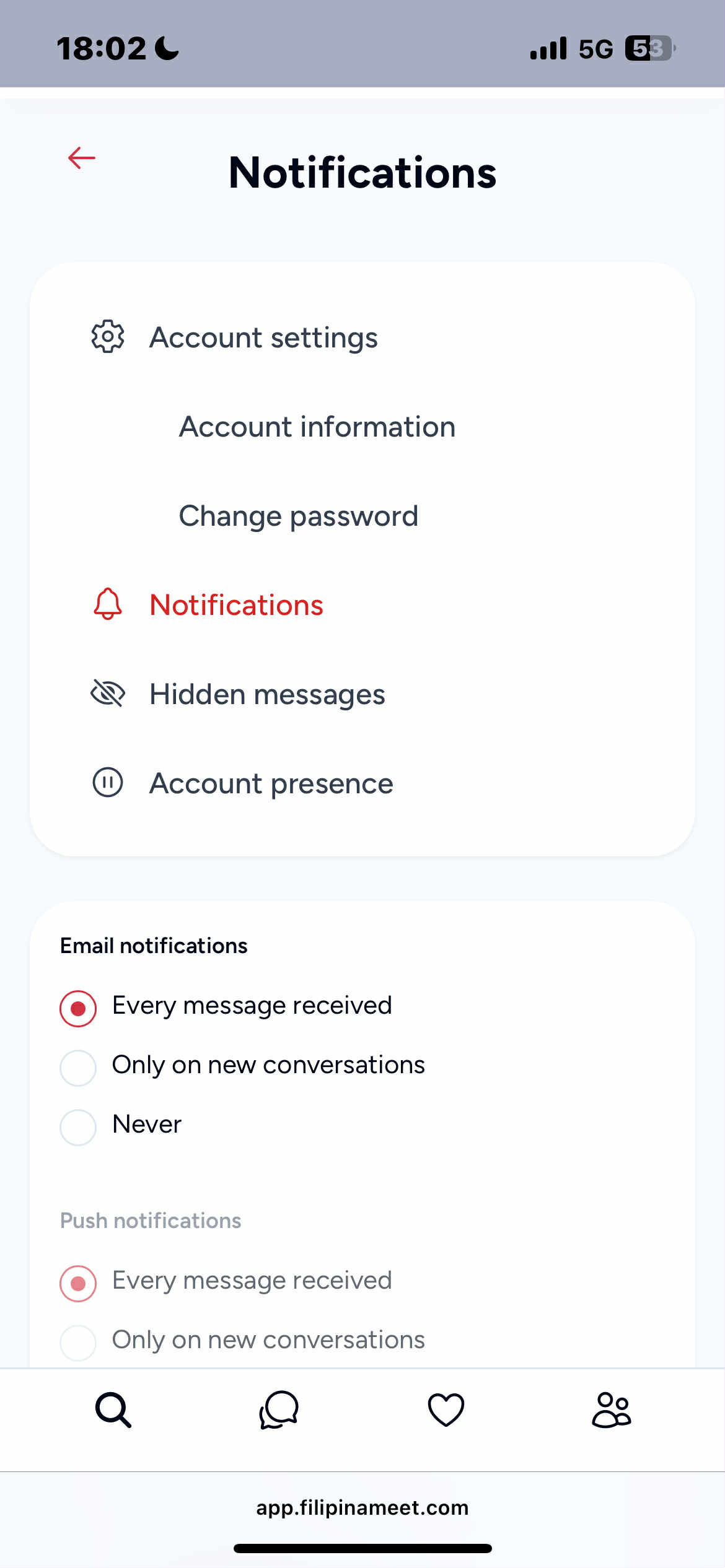
To check your setup, ask someone you already chat with to send a message while you are away from that conversation. Notifications depend on your preferences, connection, and device settings.
If notifications are blocked or missing
I previously chose “Don't Allow”
- iPhone or iPad: open your device's Settings → Notifications, select FilipinaMeet (or the name you gave the app), and turn on Allow Notifications. Then reopen the app from its Home Screen icon. If it is not listed, complete the Home Screen installation and tap Turn on notifications in the app first.
- Android Chrome: visit app.filipinameet.com in Chrome, tap the site controls beside the address, and open Permissions → Notifications to allow them. Also check Android's Settings → Apps → Chrome → Notifications, and FilipinaMeet's notification permission if it appears as a separate app.
- Desktop Chrome or Edge: open app.filipinameet.com in the browser you used to install it. Open the site controls beside the address, then Site settings or Permissions for this site. Set Notifications to Allow. Reopen FilipinaMeet and select Turn on notifications again if needed.
Notifications are allowed, but I still don't see alerts
- Check your internet connection and make sure you are signed in to the right account.
- Check that Push notifications is not set to Never. Only on new conversations will not alert you to every reply in an existing chat.
- Check Focus or Do Not Disturb, notification sounds, and any scheduled notification summaries on your device.
- On Windows or macOS, open Settings → System → Notifications or System Settings → Notifications and allow notifications for the browser or FilipinaMeet app shown there.
- If you changed phones, reinstalled the app, or cleared browser data, enable notifications again on that device. Use a regular browser window rather than private or incognito mode.
Still stuck? Contact FilipinaMeet support and include your device, browser, and the wording of any message you see. Please do not send your password.
Ready to keep your conversations close? Open FilipinaMeet and add it to your device, or return to the FilipinaMeet app page.